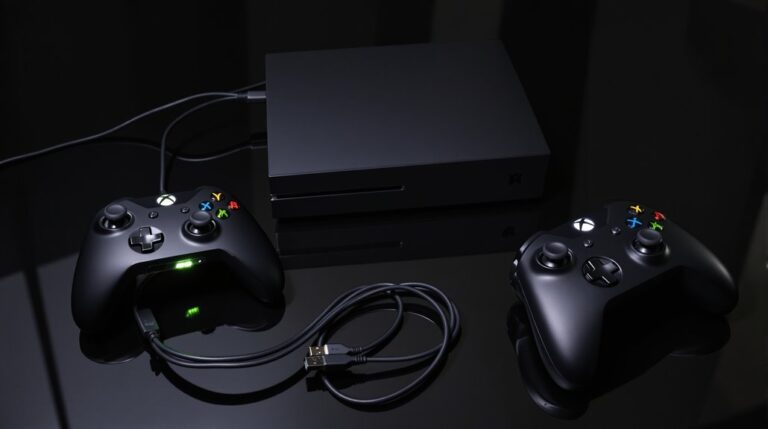
Connecting Xbox Controllers to PC is simple: you can plug in a USB cable for a stable, low-latency setup, best for long sessions.
If you want wireless, Bluetooth is easiest, but you might notice a touch more lag in some games.
Or grab the Xbox Wireless Adapter for a smoother, faster link.
Start by picking a setup, test a few games, and swap ports if something feels off.
There are tweaks and tricks waiting, and you might just level up your playtime.
Choose the Best Xbox Controller Connection for PC
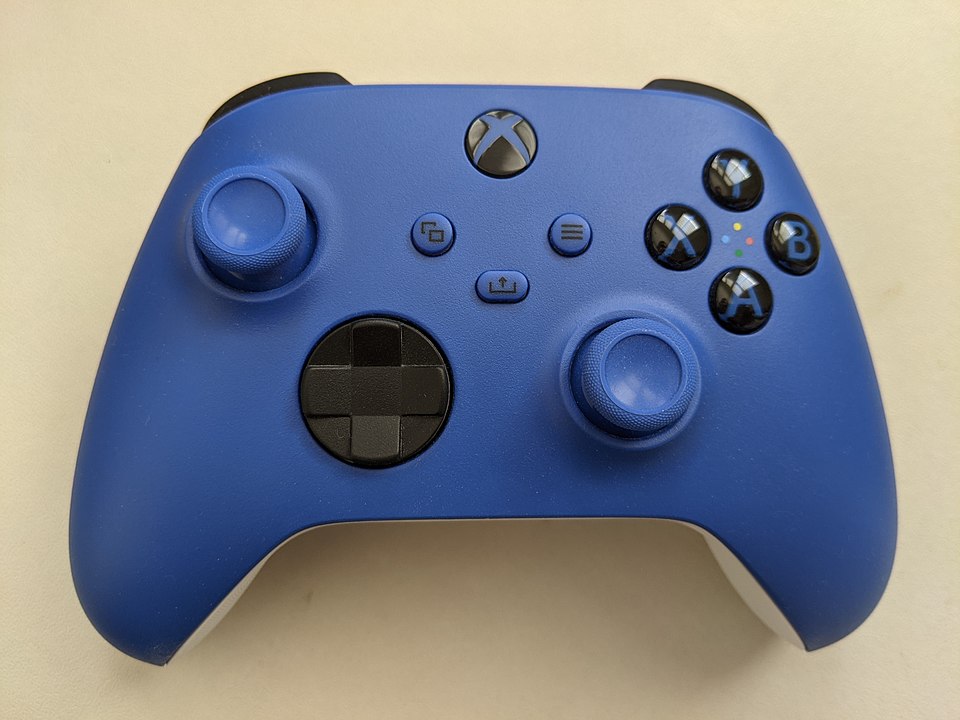
Choosing the best Xbox controller connection for PC depends on your setup and play style. You might value low latency or longer range for couch play. If you sit close to your PC, a wired USB connection is simple and fast, with no battery worries and stable input. If you want room to move, Bluetooth provides wireless freedom, but you may notice tiny latency sometimes.
The Xbox Wireless Adapter offers a good balance of low latency and multi-controller support, though it uses extra USB space. Consider your PC ports, your games, and how many controllers you need. Start with a quick test, then switch methods if needed, and enjoy smooth gaming. If unsure, start with wired, then try Bluetooth later. Wired controllers typically exhibit lower latency than wireless options, making them ideal for competitive play. For precision-focused shooters, investing in controllers with mechanical triggers can significantly improve response speed and tactile feedback.
Wire It Up: USB-Wired Setup for Stable Play
If you want a rock solid setup, USB cable is the way to go. You plug in fast, the PC recognizes it, and you’re ready to game. A stable wired connection means no lag, no battery swaps, and you stay in the zone. Make sure you pick a good cable, because cable quality matters for speed and endurance. Keep driver updates handy, they fix quirks and keep things smooth.
- Use a data-capable USB cable, not a charging-only one.
- Plug into a fast USB port to reduce delays.
- Check for driver updates if something feels off.
- Tidy your cable to avoid tugging or unplugging during play.
You’ll enjoy simple, reliable play every session. Grab a sturdy cable, breathe easy, and jump into instant action. Controllers with Hall Effect joysticks offer improved longevity and precision by eliminating stick drift and ensuring consistent analog input.
All compatible controllers support USB-C port connectivity for faster charging and reliable wired performance.
Go Wireless: Bluetooth or Xbox Wireless Adapter Options
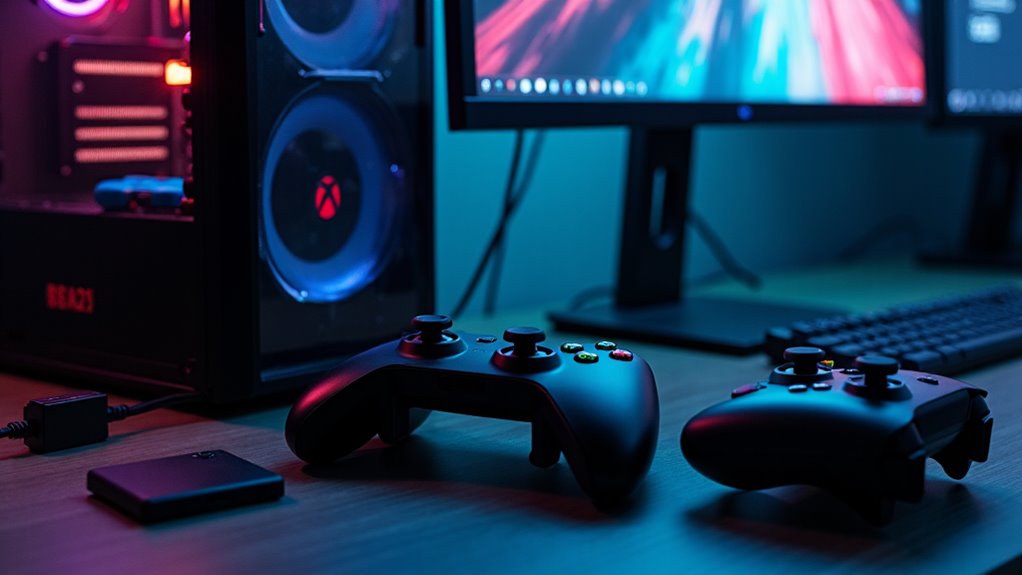
Going wireless gives you freedom, and you have two solid options to pick from: Bluetooth or the Xbox Wireless Adapter. You can choose Bluetooth if your PC already talks with peripherals and you want minimal gear. But the Xbox Wireless Adapter brings reliable range and low lag for big play sessions.
Think about range, because distance from PC matters for both options. Interference can come from other wireless devices, so choose a clear path and avoid crowded USB hubs. For best results, keep the controller and adapter or PC in line of sight and update firmware regularly. If you run into trouble, swap ports, check drivers, and test different cables or adapters. You can do a quick pairing reset and try again with fresh power.
Frequently Asked Questions
Can Xbox Controllers Work on macOS or Linux?
Yes, Xbox controllers work on macOS and Linux. Bluetooth pairing is supported on compatible models, and Steam Input can help with compatibility and remappings. On Linux, you may need to install or enable certain drivers or packages; on macOS, native support is available for many controllers.
How to Update Firmware Without the Xbox Accessories App?
Yes, you can perform a manual offline update. Download the firmware package from Microsoft, transfer it to your PC, then run the updater tool and follow the prompts to flash the controller.
Do Wireless Adapters Require Internet During Pairing?
Wireless adapters do not require internet during the pairing process. For initial setup, you may need drivers or firmware updates, which could use internet. If pairing fails, try troubleshooting steps such as re-pairing, checking power, and verifying compatibility.
Can I Charge the Battery While Using Wired USB?
Yes, you can charge the battery while using a wired USB connection. While plugged in, you can expect charging, and your battery life will continue to improve. Just keep the cable connected and play, no extra setup needed.
Do Different Controller Generations Affect PC Compatibility?
Yes, controller generations can affect PC compatibility. Older models may rely on USB, while newer ones use Bluetooth, which can cause driver or pairing issues. Make sure the Xbox Accessories driver is installed if required and verify Bluetooth support before pairing.
Conclusion
Connecting Xbox controllers to your PC is easier than you think, and the setup can be fun. You can start with a USB cable for instant, stable play, then try Bluetooth or the Xbox Wireless Adapter for wireless freedom. If things act up, swap ports, update drivers, and reset pairing. Try a test game, charge batteries, and keep a spare cable handy. With patience, you’ll enjoy smooth gaming and cool new controls in no time.