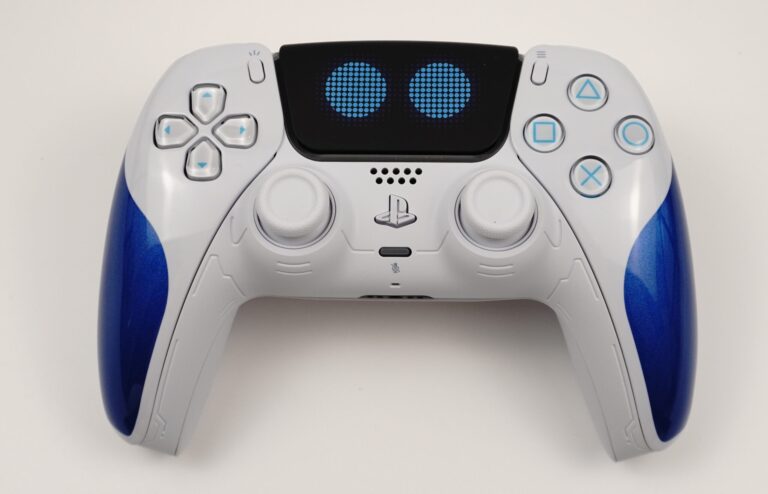
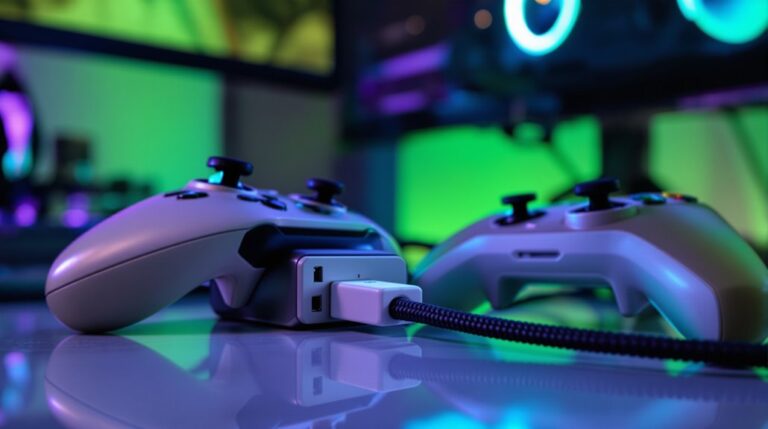
PS5 Controller Not Responding can be frustrating, so you can start simple with a quick charge and a firm USB connection, then power cycle both the controller and console.
You might try resetting the controller with a tiny pin in the back, re-pairing via USB, and clearing nearby Bluetooth devices that might cause interference.
Check for debris, updates, and obvious damage so you know what to fix next, because the next step could save your game night.
Why Your DualSense Isn’t Responding: Common Causes and Quick Checks
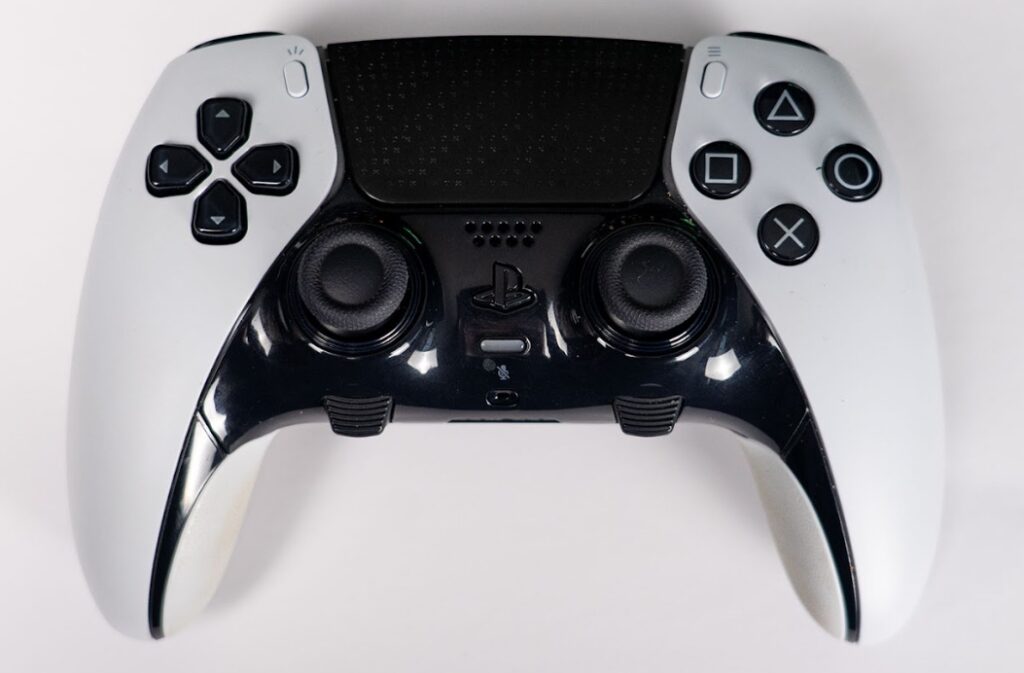
If your DualSense isn’t responding, start with the basics to spot simple fixes fast. Residue from buttons or sticky inputs from snacks can block inputs, and a quick wipe usually helps. Check for stick drift by gently moving the sticks in all directions and looking for lag or auto-centering issues. Make sure you’re using the correct USB cable and that the controller fits snugly in the charging dock. Look for dirt under the buttons or on the thumbsticks, and clean as needed.
Physical damage can also cause unresponsiveness, so inspect for cracks, warping, or loose parts. When in doubt, test on another game or console to compare behavior. Wired controllers eliminate potential battery and Bluetooth related failures, which can be a common source of disconnection issues. With patience, you’ll enjoy smooth play and more control in everyday fun. Controllers with wired connections typically offer lower input lag, which can improve responsiveness during gameplay.
Quick Fixes You Can Try: Power, Battery, and Reset Basics
Power and battery issues can trip you up fast, but they’re easy fixes. Start with a power cycle: turn off the PS5 and controller, unplug everything for a minute, then plug back in and reboot. This often clears minor glitches and brings the controller back to life. Next, check the battery: charge the controller fully using the official cable, and watch the indicator lights to confirm charging. If the light stays faint or doesn’t come on, swap to a known-good charger or cable.
A quick reset can help after a low battery, so use the small hole on the back with a paper clip for about six seconds. After that, re-pair via USB or Bluetooth and test the response. You’ve got this, keep gaming. For better responsiveness and reduced drift in future setups, consider controllers with Hall-effect joysticks. Upgrading to controllers featuring Omron mechanical switches can also enhance trigger responsiveness and durability during intense gameplay sessions.
Inspect the DualSense Hardware: Signs of Damage and Debris
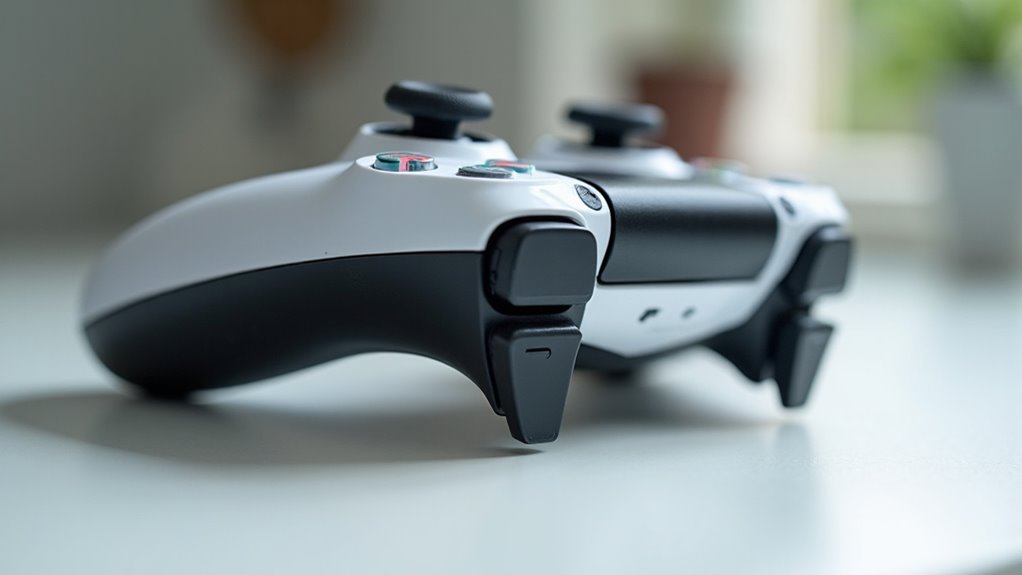
Start by checking for visible damage and loose debris, like cracks, warped grips, or dust under buttons. You might notice button wear or sticky spots near the triggers, which can block movement. Look for internal breaks in the plastic shell or loose shells around the USB port, and check the bumper area for wobble. A quick visual scan helps you avoid more effort later.
- Check for button wear and sticky residue on the surface
- Inspect internal breaks or loose shells around edges
- Look for dust, lint, or debris under buttons
- Feel the sticks and triggers for unusual resistance or grinding
If you spot any of these signs, handle the device gently, then move to the next steps with confidence. You’ll enjoy fixing it together.
Resolve Pairing and Bluetooth Issues: Re-Pairing Steps and Tips
Sometimes the easiest fix is re-pairing the DualSense, because Bluetooth drops can slow you down. First, put your controller into pairing mode by holding the Create button and the PS button until the light flashes. That signals your console to look for a new device, which helps avoid Bluetooth interference. Try re-pairing with a USB cable first, then switch to wireless by selecting the controller in Bluetooth settings. If it still won’t connect, remove the device from nearby gadgets, reboot the PS5, and retry pairing mode. Keep your controller close to the console, stay away from microwaves or wireless speakers, and check for clear air. If you see ‘Bluetooth interference’ pop up, pause other devices, swap ports, and try again today.
Update Firmware and Drivers: Keeping Your Controller Current
Now that you’ve got re-pairing out of the way, it’s time to keep things fresh with firmware and drivers. You’ll want the latest firmware and drivers so your controller feels responsive and reliable today. Check for updates from Sony, software updates, and from any PC drivers, because software updates fix bugs and improve compatibility. A quick update can reduce lag during games and keep features like haptics working smoothly.
- Use the official PS5 or Sony software updater to grab the newest version
- Be sure your PS5 or PC is connected to the internet during the update
- After updating, restart the console or reboot the PC for good measure
- If a download stalls, pause, resume, or re-download the file
Sticking with updates keeps playtime smooth.
When to Replace or Seek Expert Help: Durable Troubleshooting Thresholds
When a few fixes don’t do the trick, decide whether to replace the controller or call in a pro. You want to keep playing, so set a practical threshold for how much you’re willing to spend. If you see internal damage on the board or terminals, or if repair costs exceed the price of a simple replacement, it’s time to seek help. A technician can test the wireless link, check the buttons, and verify the battery safely. If the repair price is higher than a fair value, consider getting a new DualSense. Remember that some issues are caused by software or worn connectors, not deep hardware damage, so a swap later may still save you money. Stay hopeful, stay curious, and keep the fun in gaming.
Frequently Asked Questions
Can a PS5 Controller Work Wired While PS5 Is Off?
Yes, a PS5 controller can charge wired when the PS5 is off, but it won’t function as an input device. If you want to use it for playing, connect it to a PC or leave the PS5 in Rest Mode to keep charging.
Do Dualsense Sticks Require Calibration Often?
Not often. You typically only need calibration if you notice stick drift or inconsistent input. In Analog settings, recalibrate occasionally after significant firmware updates or controller swaps to restore precise responses and prevent drifting issues.
Why Does Touchpad Respond Differently Than Buttons?
Touchpads rely on capacitive sensing and software tuning, so they can feel more sensitive or drift, while physical buttons remain tactile. Debris, miscalibration, or firmware issues can cause inconsistent input, which may require cleaning and recalibration.
Can Third-Party Cables Cause Triggers to Delay?
Yes, third-party cables can delay triggers. Poor cable quality or signal interference often disrupts timing. Use a first-party or certified cable, keep connections tight, and test with another port to confirm proper operation.
Is There a Warranty for Internal Water Damage?
Typically, there is no warranty coverage for internal water damage; what’s covered depends on your plan. Review your policy terms, because eligibility is determined by a damage assessment. If it’s covered, repairs or replacement will follow the policy guidelines.
Conclusion
You’ll breeze through fixes and get back to gaming fast with a little patience.
Start with simple checks: confirm the USB cable is in good condition and re-pair after a power cycle.
If the screen goes dark or the lights fade, reset the controller using a paperclip.
Charge the controller fully, then test wired play before blaming the device for glitches.
Cleaning debris from ports and updating the firmware will help keep things running smoothly.
Have fun gaming.