Do Series X Controllers Work on Xbox One?
Yes, Series X controllers work on Xbox One, and you can pair them wirelessly or wired.
You press the console’s Pair button and then hold the Xbox button on the controller until it connects.
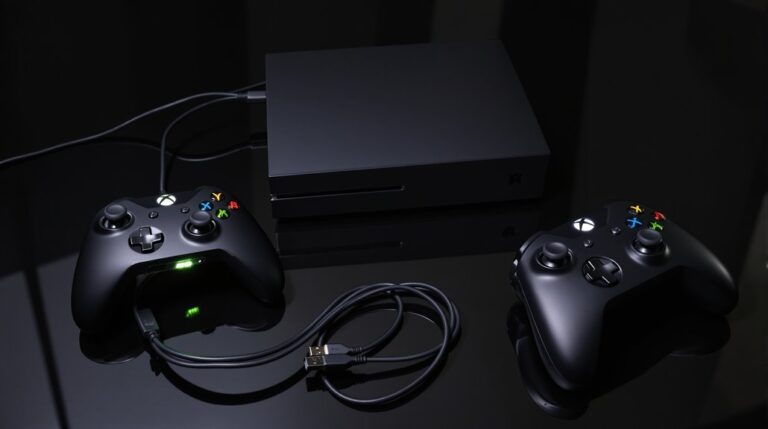
If wireless is flaky, use a USB cable for instant input and steadier play.
They feel solid, batteries last long, and you can share controllers with friends for late night sessions, which keeps things fun, and there are a few tricks to get the most out of them, so stay tuned.
Do Series X Controllers Work on Xbox One? Quick Verdict and What to Know

Yes, Series X controllers work on Xbox One, and the setup is usually quick. Pair them by pressing the Pair button on the console, then holding the controller’s Pair button for a few seconds. The controller feels comfy with the Series X grip, and actions respond with little input lag in most games. You’ll have steady wireless power from standard AA batteries or a recharge kit, so you won’t need to pause to swap batteries.
For the smoothest feel, try a wired USB connection, which bypasses wireless latency and keeps things predictable. Keep in mind some features require Series X hardware, but basic controls work fine on Xbox One, making compatibility straightforward today. Hybrid D-pad design improves precision in games requiring accurate directional inputs.
Which Series X Controllers Are Backward Compatible With Xbox One?
Most Xbox Series X controllers work with Xbox One, including the Elite Series 1 and 2 and the standard wireless controllers. They are backward compatible and can also be used with Windows PCs and mobile devices. To pair them: turn on the console, press the console’s Pair button, then quickly press and hold the controller’s Pair button for a few seconds until the Xbox button starts flashing.
All of these controllers support Xbox Wireless + Bluetooth, ensuring seamless connectivity across compatible devices.
Series X Controllers Compatibility
If you’re wondering which Series X controllers work on Xbox One, you’re in luck. Most official Xbox controllers are backward compatible, so you can game now without buying new gear. Here are the key options you should know about:
- Xbox Wireless Controller (standard)
- Xbox Elite Wireless Controller Series 1 and 2
- Xbox One S/X controllers with Bluetooth
Series X controllers bring design improvements and a better grip texture, so you’ll feel more control during sessions. To connect, press Pair on the console and the controller, then wait for the Xbox button to flash and stay solid. Keep batteries fresh, and you’ll avoid drift or dropouts. You can also use a USB-C or micro USB cable if you need a wired option.
Backward Compatible Models
Many Series X controllers work on Xbox One, and you won’t need a new setup. You’ll find most official Xbox One controllers work, including the standard wireless models and the Elite Series 1 and 2. Backward compatibility stays strong, and Microsoft confirms these controllers connect and pair just like they did before. If you use a One S or One X with Bluetooth, you can still pair easily, and USB-C cables work too. For design changes, Series X controllers bring better grips and a refined layout, but you keep using your old accessories. A few features like Dynamic Latency Input may not be active on Xbox One, yet most games feel smooth and fast. If unsure, test with a friend and enjoy setup tonight. Wired controllers typically exhibit lower input lag than wireless, making them a strong choice for precise FPS gameplay. Upgrading to controllers with Hall Effect joysticks can further enhance accuracy and longevity by eliminating stick drift.
Cross-Platform Compatibility Notes
Because Series X controllers are built for compatibility, you can use them on your Xbox One without extra setup. These controllers work smoothly across platforms, so your gaming stays fun. Here are quick notes to help you get going:
1) You can pair the Series X controller with Xbox One using standard pairing steps, and it also connects to PC gaming setups via Bluetooth.
2) If you play on mobile, you can use the controller for cloud gaming apps with solid wireless performance.
3) For mixed play, keep batteries fresh and test latency in a busy room to avoid delays.
This cross-platform vibe makes gaming more social, flexible, and enjoyable for you and your friends. Give it a try tonight; it feels great.
How to Pair a Series X Controller With Xbox One
To pair a Series X controller with an Xbox One, first turn on both the console and the controller, and make sure the controller has fresh batteries or a charged battery pack. If the controller won’t wake, press the Xbox button again and hold the Pair button on the top for a few seconds.
On the console, press the Pair button to begin wireless pairing, then watch the controller’s light until the connection is shown. Once it’s connected, you can use the controller for games, navigate menus, and add friends.
If you experience lag, turn off Bluetooth on nearby devices and try again for a smoother initial connection.
Battery and Power Options for Series X Controllers on Xbox One

Power your Series X controller on Xbox One with simple options like AA batteries or a rechargeable pack, whichever fits your setup. Battery life matters, and choosing the right option keeps games going without breaks. Here are easy choices to keep you powered:
- Use AA batteries for quick, cheap power.
- Get a rechargeable battery pack for longer play and fewer waste.
- Use a USB power option: connect via USB to your console, PC, or a powered USB adapter.
Keep an eye on power indicators and swap batteries before a long session ends. Pro tip: keep a spare charged pack ready, and store it within reach. This setup keeps gaming smooth and affordable, so you can focus on fun, not plugs, during long sessions.
Which Features From the Series X Controller Work on Xbox One?
You can use many Series X controllers on Xbox One, including standard and Elite models, and still enjoy wireless play. On Xbox One you’ll find that some Series X features carry over, like the Share button for quick captures and the improved D-pad functionality that gives you smoother inputs in platformers and fighters.
You can also use a Series X controller over USB-C with a wired connection, or tuck in batteries for long sessions. Battery life stays solid, and the controller still pairs easily with a One console. Dynamic Latency Input is not available on Xbox One, but you’ll notice crisper responsiveness from the newer grip design and better textures when you play. Grab one and start gaming with friends today at home.
Troubleshooting Common Connectivity Issues With Series X Controllers on Xbox One
If your Series X controller won’t connect, start with pairing checks and the console’s listening mode. Next, check the battery level, replace with fresh AA batteries, or recharge the rechargeable pack. If signals still wobble, reduce interference by moving closer to the console, and keep other wireless gear out of sight.
Pairing Troubleshooting
Sometimes the pairing process stalls, but don’t worry, it’s usually fixable with a quick check. Stay calm and follow these simple steps to resolve common issues. Start by confirming signal strength on the console and controller; weak wireless signals can stop pairing early. Then try a pairing reset by removing power (or batteries) for ten seconds, reinsert, and press the Pair button again. If it still won’t connect, use a clean USB cable to connect briefly, then pair wirelessly once it’s detected. Do this:
- Check signal strength and minimize interference
- Do a pairing reset by removing power and retrying
- Re-pair with a fresh USB connection first
With patience, you’ll enjoy smooth games. Your friends will notice, quickly.
Battery Power Check
Battery power can make or break a session during pairing. When you test your Series X controller on Xbox One, check battery life first. If the light behaves oddly or the controller feels slow, replace with fresh AA batteries or a charged rechargeable pack. If you use power adapters, ensure the adapter is the correct size and plugged in firmly. Avoid cheap or loose cables, as they can fool the controller into thinking it has power. Keep a spare battery handy for long gaming sessions so you don’t quit mid-match. Regular checks save time and keep the fun rolling. If you notice lag, pause and test again after swapping batteries or trying a different USB charger.
Interference and Range
Even in a busy living room, wireless interference can mess with your signal. For smooth play, check your range and stay close to the TV. If you notice lag, try these tips to boost signal strength and stay within wireless limits.
- Move the console and controller away from routers, microwaves, and metal shelves.
- Keep the controller in line of sight and reduce wall barriers between you.
- Use a USB extender or adjust the controller position to minimize interference.
Keep your batteries fresh and keep the controller within about 20 feet (6 meters). If problems persist, restart devices, re-pair, and test again to enjoy precise input and steady play. Together, you will feel in control and have more fun.
Frequently Asked Questions
Do Series X Controllers Work on Xbox One Without a Dongle?
Yes, Series X controllers work on Xbox One without a dongle because Microsoft supports backward compatibility with Xbox One consoles. You can connect wirelessly via the console or use a wired connection with USB-C.
Can Series X Controllers Pair With Windows via Bluetooth on PC?
Yes, Series X controllers can pair with Windows PCs via Bluetooth. To do this, enable Bluetooth, put the controller in pairing mode, and connect through Windows Bluetooth settings for PC gaming; this provides low-latency input in supported apps.
Is There Any Latency Advantage When Using Series X Controllers on Xbox One?
Yes, you’ll notice little to no input lag advantage when using Series X controllers on Xbox One. They don’t reduce latency there, but wireless performance remains solid, and Dynamic Latency Input isn’t active on Xbox One for games.
Do Series X Controllers Support Chat Headsets on Xbox One?
Yes, Series X controllers support chat headsets on Xbox One. You’ll get solid sound quality and reliable microphone compatibility, so your party chat stays clear while gaming, with standard 3.5 mm headsets supported across devices.
Are There Differences in Charging Options for Series X Controllers on Xbox One?
Yes, charging options differ for Xbox One and Series X controllers. You can use rechargeable battery packs or AA batteries, and USB-C cables for charging. Rechargeable battery packs fit Series X controllers, while cable types and charging methods may vary; check the controller’s battery level to ensure it’s charged.
Conclusion
Yes, Series X|S controllers work with Xbox One. To pair, press the console’s Pair button and the controller’s Xbox button until they connect. If you run into trouble, try re-pairing or use a wired USB cable for steady play. Some advanced Series X|S features may not be available, but the core controller inputs feel great, and you’ll benefit from quicker responses and tighter aim. It’s worth it.