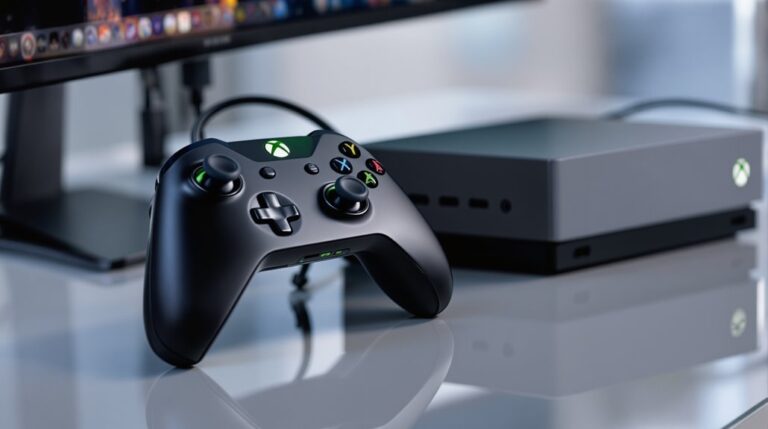
To get your Xbox controller dialed in on PC, start by checking cables.
Next, update drivers and make sure your device shows up in Settings.
Open the Windows calibration tool, pick your controller, and run the wizard. Calibrate each axis, set dead zones, and test triggers with simple moves.
Save the profile and try it in a game, adjusting drift as needed. With steady practice, you can nail smooth control across titles, more tips ahead.
Prepare Your Setup: Check Hardware, Drivers, and Cables

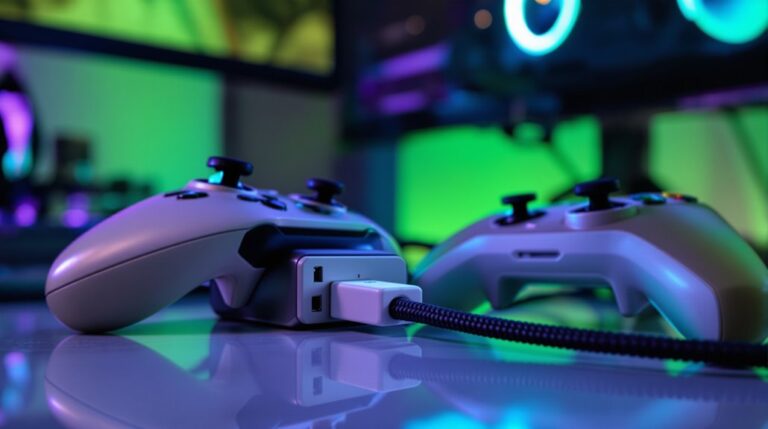
Before you calibrate, take a quick look at your gear to avoid avoidable glitches. You’ll save time if you verify a few basics first. Start with the cable and ports, because a loose USB cord can ruin your session. Do a cable check, update drivers, and swap to a different USB port if things act flaky. Next, update drivers so the PC talks cleanly with your controller; a driver update can fix many little problems. Make sure the controller is powered and pairing buttons work. Check the PC recognizes the device in Devices and Printers, and confirm it shows as wired if you prefer a solid connection. Keep everything organized on your desk to stay focused and positive. You’ve got this, and calibration gets easier today. Wired controllers typically offer lower latency than wireless options, which can improve responsiveness during calibration and gameplay. All recommended controllers feature a USB-C port for reliable charging and wired connectivity.
Launch the Windows Calibration Tool and Select Your Controller
Now that you’ve checked your gear, it’s time to open the Windows calibration tool. Start by typing Control Panel or searching for Devices and Printers, then select it from the results. In the Game Controllers window you’ll see your Xbox device listed, ready for action. This is where you access the calibration path, and you’ll reach controller selection with a simple click. If you don’t see it, try unplugging and replugging the USB, or use another port to avoid recognition hiccups. Right-click the icon and select Properties to open the calibration path. The process is friendly and quick, so you can get back to gaming fast. Once you’ve selected your device, the calibration wizard will guide you through the steps, and you’ll feel confident moving forward. Stay curious, stay calm, and enjoy the easy setup ahead for a smooth start. For optimal performance, consider using a controller with Hall Effect joysticks to eliminate stick drift and ensure long-term accuracy. Wired controllers typically offer lower input lag, making them ideal for precision play in fast-paced FPS titles like competitive shooters.
Calibrate Each Axis and Set Precise Dead Zones

Calibrating each axis helps your controller feel exact and responsive for every game moment. You’ll fine-tune analog sticks and triggers so movements match your intention, not drift. Set precise dead zones to skip tiny wiggles and keep the action smooth. This makes racing and shooters feel natural, quick, and fun.
- Feel the analog sticks respond exactly as you move, with dead zones tuned to your grip.
- Test trigger response by squeezing gently and noting smooth, consistent start and stop.
- Adjust X and Y rotation until your crosshair centers easily and returns to center naturally.
- Save settings and test in a quick game, listening for crisp input and minimal drift.
Give it a try today and enjoy precise control you can trust.
Validate Results in-Game and Fix Drift If Needed
After tuning your axes, validate results in-game and fix drift if needed, so every move feels right. When testing, run quick in-game rounds, check if your aim stays steady, and watch for any drift as you move the stick. If you notice drift, apply drift correction by re-centering sticks gently and adjusting dead zones in small steps. Try different games to confirm consistency, not just one scene. Keep an eye on analog sticks during cutscenes and fast moments, where small drift shows up. If problems persist, recalibrate just the affected axis, test again, and save. The key is patient testing, simple tweaks, and steady progress toward precise control. You got this, gamer friend, enjoy the process today.
Frequently Asked Questions
Can Calibration Be Done Without Restarting Windows?
Yes, you can calibrate without restarting Windows. In Game settings, open the calibration tool, complete the process, and save your adjustments. If problems persist, update to the latest drivers and keep them current for smoother input in games.
Will Bluetooth Delay Affect Calibration Accuracy?
Yes, Bluetooth latency can affect calibration accuracy. You may observe drift or timing issues caused by latency and interference from nearby devices. Use a wired connection to guarantee measurements, then re-run calibration for precise results.
Is Steam Calibration Necessary After Windows Tool?
Not strictly necessary; you can rely on the Windows tool. However, Steam profiles and settings let you fine-tune sensitivity after calibration for smoother input across games. Using Steam calibration resets is also fine.
Can Calibration Fix Drift Permanently?
Calibration cannot fix drift permanently, but it can reduce it by adjusting dead zones and sensitivity curves. You may need to recalibrate periodically or adjust software settings, replace worn hardware, and test games for consistency.
Do USB Hubs Affect Calibration Results?
Yes, USB hubs can affect calibration results because power delivery may be unstable and signal integrity can degrade if the hub shares bandwidth or uses poor cables. For the most reliable readings and calibration, connect the device directly to the PC.
Conclusion
Now you’re ready to enjoy precise control, and that feeling is worth the effort. Keep cables snug, drivers up to date, and keep the calibration tool steady as you test the sticks. Set your dead zones by centering the stick, then nudge gently to feel smooth, responsive movement. Test in a couple of games, adjust drift if needed, and save your settings so they stick. With practice, PC gaming becomes smoother, more fun, and accessible to beginners.