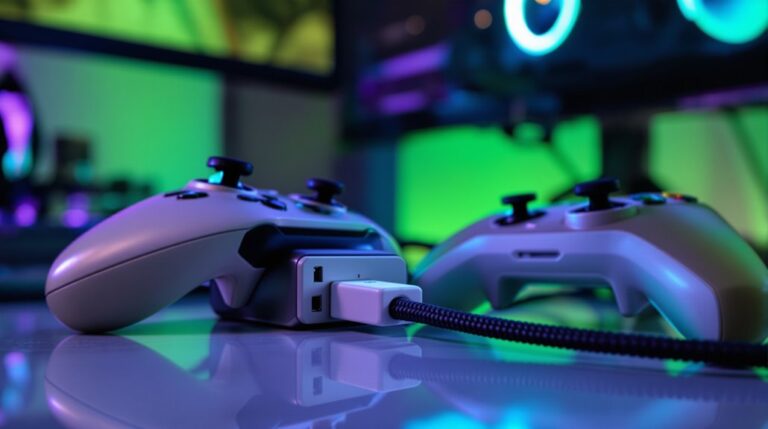
Lowest Latency Way to Connect Controller to PC: For the lowest latency, you plug your controller straight into a fast USB port on your PC.
Use a braided USB 3.0 cable and keep hubs out of the loop to minimize delays.
Update drivers and firmware, disable Bluetooth, and set the polling rate high so every press lands fast.
With a few quick tweaks, you feel the difference and stay ready for longer sessions, so you can explore more.
Wired USB for Zero Latency: How to Connect and Configure

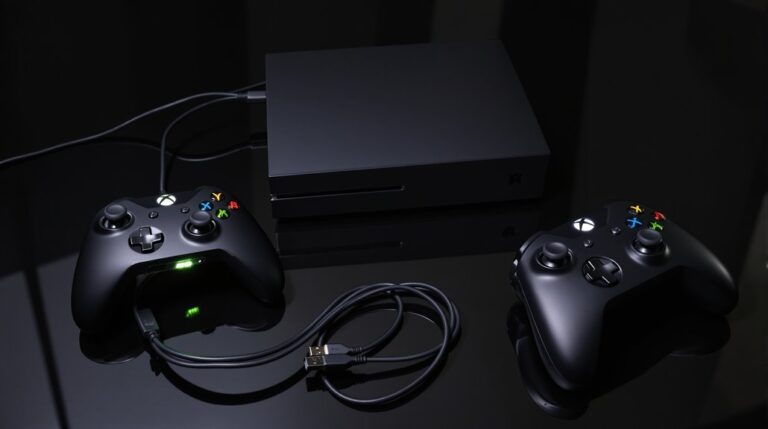
Wired USB gives you zero latency, so you’ll feel every move the moment you press a button. To start, plug into a fast USB port on your PC and check that the cable is sturdy. Cable quality matters, so choose a braided or reinforced cord that doesn’t pinch or twist. Port selection matters too, use a direct USB 3.0 or higher port for the best stability. If your PC has hubs, plug the controller directly into the PC and avoid crowded hubs. After you connect, Windows will detect it quickly and you can test response in your game settings. Keep the driver clean, update firmware if needed, and tidy cables so you never trip over them during a match. Stay relaxed and enjoy speed. Wired controllers typically exhibit lower input lag than wireless, making wired controllers the preferred choice for competitive FPS play. A high polling rate ensures responsive performance, and controllers with 1000 Hz polling rate deliver maximum precision for fast-paced games like Warzone.
Latency Showdown: Wired USB, Dedicated Wireless, and Bluetooth
If you want the fastest setup, you’ll test wired USB, a dedicated wireless adapter, and Bluetooth side by side, right now. You’ll feel the difference because wired USB is direct and steady, with zero wiggle room for delay. The dedicated wireless adapter cuts through interference and keeps latency low, so you can move fast in games. The Bluetooth has its limits, and Bluetooth limitations show up as small pauses during fast actions, especially with other devices nearby. Remember adapter benefits when you pick your gear, and watch for stutter away from walls or metal. Keep batteries fresh and stay close to the PC. It’s fun, it’s simple, and you’ll improve quickly. Try a quick side test and note timing, then share your results online. Wired controllers eliminate potential battery and Bluetooth related failures due to their direct connection and consistent power supply. For fighting game precision, a microswitch-based D-pad delivers faster input registration and enhanced tactile feedback compared to membrane alternatives.
Step-by-Step: How to Set Up a Zero-Latency Wired PC Connection

You’ll start by plugging your controller into a fast USB port and checking for instant recognition. Next, install the correct driver, disable Bluetooth, and test latency with a quick in-game demo. Keep the cable tidy, use a short cable, and feel the zero-latency difference in practice.
Zero Latency Setup
To achieve a zero-latency wired PC connection, plug the controller into a fast USB port. This setup reduces input buffering delays and keeps actions in sync with your screen, making moves feel instant. Set the polling rate to the highest option in the game settings or controller software for peak speed. Use a direct USB 3.0 port and avoid hubs to minimize lane sharing and jitter. Keep drivers updated, restart after updates, and test with a simple practice run to feel the difference. If you notice any lag, try a different cable, disable background syncing, and run a quick ping test. With these small tweaks, you can enjoy fast, reliable play and keep practicing like a pro at home.
Wired Connection Essentials
Getting into a zero-latency wired setup starts with a clean, fast USB port and a sturdy cable. You want cable quality that feels solid, not loose, and port selection that stays powered. Keep cables short enough to reduce slack but long enough for comfort.
- Check cable quality with a sturdy braid
- Choose port selection on USB 3.0 or better
- Keep a short, tangle-free setup
When you plug in, test both the controller and PC by moving quickly through menus to feel the instant response. Use a single clean USB port, and if possible, avoid hubs. Remember to label cables, so you know which one is your gaming line. Good luck, you will enjoy faster, smoother play today.
Choosing a Wireless Setup: Stability, Cost, and Risk
- When choosing a wireless setup, you trade convenience for stability, cost, and risk.
- Weigh ease of use against potential drops, battery needs, and price.
- A stable Bluetooth connection helps, but expect occasional interference in busy rooms or hallways.
- The official wireless adapter often wins on stability, with fewer drops and smoother input.
- Be aware of adapter drawbacks and always check signal strength in your space before buying.
- Test Bluetooth at home, then in a different room to gauge real-world stability.
- Battery life matters, so carry spares and charge before long sessions.
- For a clean setup, place the dongle near the controller.
- Gaming is fun; choose what fits your space and budget today.
- You can mix options to get the best overall setup.
Quick Tweaks: System, Network, and Drivers to Reduce Lag
If you want lower lag, start with your PC, network, and drivers, then fine-tune. You can shave milliseconds by setting process priority to high during gaming and closing unnecessary background apps. Cut clutter in the system tray, unplug power-hog programs, and keep drivers fresh. Switch to a wired Ethernet connection when possible, and lock in the best refresh rate on your monitor. Tidy network settings, disable auto updates during play, and keep your PC cool. These small steps make a big difference and keep the hobby fun.
- Process priority: set high during gaming and reset after to balance safety.
- Background apps: close nonessential programs to free RAM and bandwidth.
- Network and drivers: update drivers, optimize MSI/NDIS settings, and test closer servers today.
Test and Verify: Practical Latency Testing Methods
Now that you’ve tidied things up, it’s time to test your latency like a pro. You’ll use a mix of quick checks and visuals to verify your setup doesn’t lag. Start with a simple visual comparison by running a few fast tests side by side on the same game with wired and wireless options. Use software tools that measure input delay, frame time, and jitter, then record the numbers. Keep your tests short and repeatable, say five runs per setup. Look for consistency, not perfect numbers, and note any spikes. For tips, try a consistent screen, close background apps, and keep batteries fresh. Have fun, learn, and share your results with friends. Soon you’ll spot trends and improve response every single day with ease.
Frequently Asked Questions
Do Wireless Adapters Beat Wired for Total Latency?
No, wired usually wins total latency, but a good adapter comparison shows wireless can approach it; protocol differences still add milliseconds. You’ll notice the gap in competitive play, where wired remains the safer option for most.
How to Measure Controller Latency Accurately at Home?
Estimate controller latency at home by capturing high-speed timestamp data with a USB timing method, then compare input lag to display lag using software tools. Use a frame-locked setup, perform repeatable tests, and record multiple trials for accuracy.
Does Controller Type (Xbox/Ps/Nacon) Affect Latency?
Yes, controller type affects latency. Xbox, PS, and Nacon controllers can show measurable differences. Differences in drivers and communication protocols influence polling and data packets, so latency can vary by device even before cables or adapters are considered.
Is Bluetooth Always Worse Than Wired for Gaming?
Bluetooth isn’t always worse, but it tends to be more variable for gaming. You may encounter pairing issues and signal interference, while wired stays stable with zero latency, making it your best option for competitive play.
Can Firmware Updates Reduce Input Lag on Controllers?
Yes, firmware updates can reduce input lag by optimizing polling rates and wireless behavior, but benefits depend on the device; monitor update frequencies and consider driver impact when pairing with Windows or adapters for results.
Conclusion
Getting the lowest latency is totally doable, so start with a wired USB setup. Use a fast USB 3.0 port, a sturdy braided cable, and up-to-date drivers plus the latest controller firmware. Disable Bluetooth, keep hubs unplugged, and set a 1000 Hz polling rate when possible. Test by closing background apps and prioritizing your game, then tweak as needed. You’ll notice snappier input and smoother gameplay, making the hobby even more rewarding.