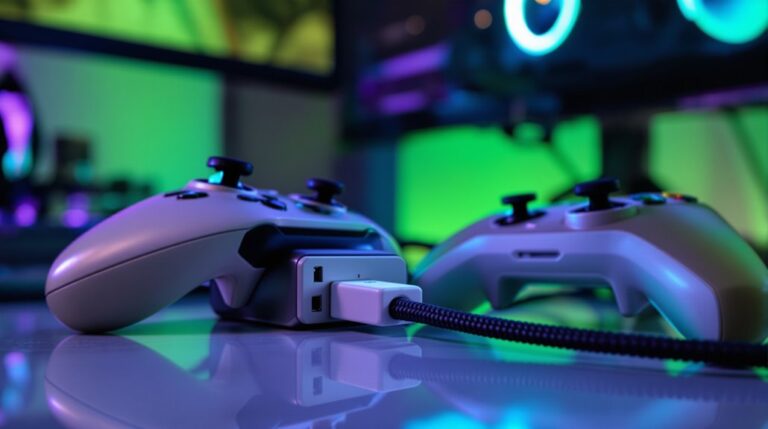
In this guide, How to Connect PS5 Controller to PC, you can hook up your PS5 controller to a PC with a USB-C cable or Bluetooth.
Wired is quick and reliable, while Bluetooth keeps you moving without cords, just pair by holding PlayStation and Create.
If you want full features, turn on Steam’s PlayStation Configuration Support and use Big Picture Mode.
Curious about troubleshooting, driver updates, or extra tools like DS4Windows? There’s more to explore.
Hook Up Your PS5 Controller to Windows (Wired or Bluetooth)
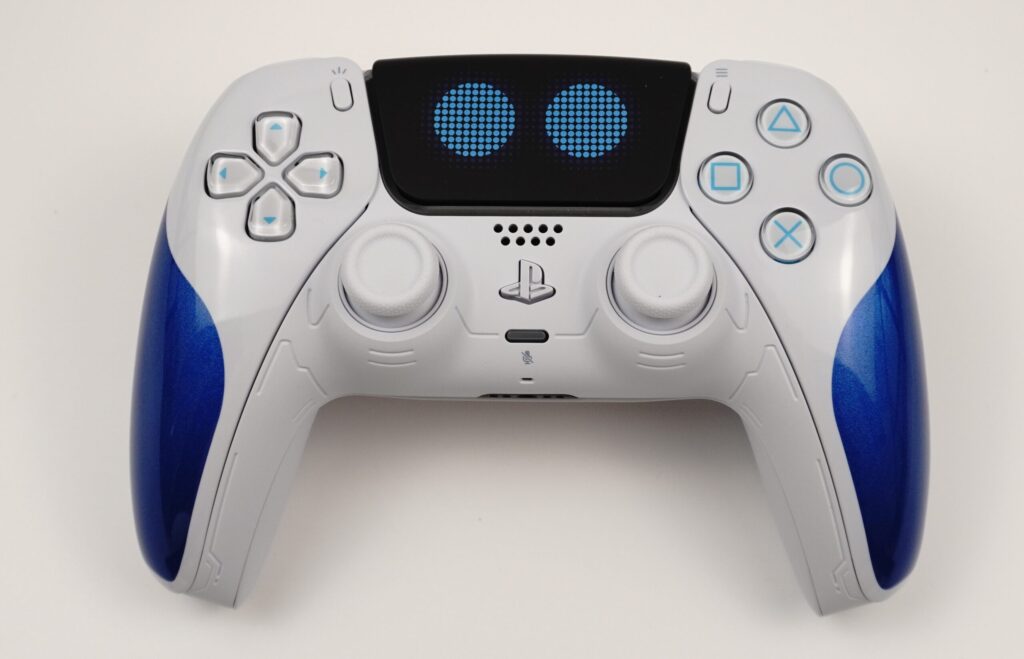
Hooking up your PS5 controller to Windows is easy, whether you use USB or Bluetooth. For wired use, choose a solid USB-C cable and plug it into your PC; Windows will recognize it quickly and you can start playing right away. For Bluetooth, enable Bluetooth on your PC, press and hold the PS Button and the Create button until the light blinks, then select Wireless Controller from the list. Keep in mind that cable quality matters for a stable signal, and wireless setups require good signal strength between your PC and the controller.
Keep Steam ready with PlayStation Configuration Support for full features, and test in a simple game like Rocket League to verify everything works smoothly. If you run into issues, restart the device and try again. Wired controllers typically exhibit lower latency than wireless options, providing a more responsive experience during fast-paced gameplay. Competitive players often prefer microswitch-based D-pads for their faster response and tactile feedback.
Verify Detection and Basic Controls (Wired First, Then Bluetooth)
First, connect the PS5 controller to your PC with a solid USB-C cable and wait for Windows to recognize it. You should see the controller appear as a gamepad in Settings, and you can test basic inputs quickly. Check the Lightbar status to confirm power and mode, and run simple button tests to verify that every face button and trigger works. For wired detection, move a thumbstick and press a few buttons to feel the responsive feedback, then unplug and try Bluetooth if needed. Remember, wired is the fastest, so use it first, then switch to Bluetooth for flexibility. If anything seems off, reset the controller and recheck the device manager.
Keep sessions short at first, take notes, and celebrate small wins with you. Wired connections help minimize input lag, which is critical for maintaining precision in fast-paced games like first-person shooters, where even slight delays can impact aim and reaction time, especially when using features like Snipe Mode for targeted shooting scenarios. Controllers with textured triggers and rubberized grips offer enhanced tactile feedback and comfort during extended play sessions.
Configure Steam for Full DualSense Features

Now that wired detection and basic controls are sorted, you can activate full DualSense features in Steam. In Steam, go to Settings > Controller and enable PlayStation Configuration Support for best results. Open Big Picture mode to access controller options easily, and test the settings with a simple game or demo. Enabling these features enables adaptive triggers and haptic feedback for a more direct feel. You can customize button mappings, adjust vibration level, and see prompts that match PS5-style prompts. If something feels off, try restarting Steam or reconnecting the controller, then recheck the Controller page. Enjoy smoother gameplay and a more expressive feel while you play. It only takes a few clicks.
Enhance Control With Optional Tools
When you want more control, optional tools boost your setup without slowing you down. These tools let you customize button layouts and tweak vibration so play feels just right. For true customization, try mapping apps that remap inputs or create macros for complex moves. Emulation options help games without official support recognize your DualSense features in many titles. You can use DS4Windows or DualSenseX to extend compatibility beyond Steam, and stay simple at first. Start with a straightforward profile, then add sensitivity tweaks, lighting, and input-delay controls as you learn. Keep notes so you remember what changes fit your game, and share setups with friends. Short trials work best, and you will discover a smoother, more enjoyable PC gaming routine. Have fun exploring.
Troubleshooting Common Connection Issues
If you tried optional tools and still hit a snag, here are quick fixes to get back in the game. Start by resetting the pairing, then try again. Pairing resets can fix stuck connections and save you time. Make sure the USB or Bluetooth method matches what you want, and keep cables firm.
Next, check driver updates on your PC and Steam. Update USB drivers and the Bluetooth stack, then reboot. If you still have trouble, use a wired connection as fallback. In Steam, verify PlayStation Configuration Support stays enabled and Detected Controllers shows your device. If nothing helps, try third party tools after you exhaust native options, and watch for the light bar glow when you pair. You got this, keep it simple today.
Frequently Asked Questions
Does Dualsense Work With Linux or Mac Without Extra Software?
Yes, you can use the DualSense with macOS and Linux without extra software. It has native support and driver compatibility, so basic controls work out of the box, while advanced features may require optional tools to enable full functionality on Linux or macOS.
Can I Charge the Controller While Using Bluetooth on PC?
Can I charge while using Bluetooth on PC? Not with Bluetooth alone, you need to connect a USB-C cable to charge. Charging speed depends on the cable and the power source; use a reliable 5V supply.
How to Update Dualsense Firmware on PC?
Updating the DualSense firmware on a PC isn’t supported natively. Use a PS5 or PS4 to perform the update. If you try to update on a PC, you may encounter update issues and driver conflicts. Ensure Windows drivers are up to date and disconnect any peripherals that could conflict, then try again.
Will Gyro and Adaptive Triggers Work in Non-Steam Games?
Yes, gyro aiming and trigger emulation can work in many non-Steam games when you enable PlayStation Configuration Support or use third-party software; results vary, but some titles support gyro and adaptive triggers natively.
Can I Reconnect Automatically After PC Suspend?
Yes, you can reconnect after suspend if your PC and controller settings allow wake and Bluetooth reconnect. If you encounter driver issues, update the drivers and adjust power settings to prevent USB or Bluetooth from sleeping during suspend.
Conclusion
You can get your PS5 controller talking to your PC in no time, and it feels great. Start with a quick wired connection for instant detection, then try Bluetooth if you want wireless freedom. Once Steam is set to PlayStation Configuration Support, you’ll enjoy adaptive triggers and haptic vibes in compatible games. If anything glitches, just reset pairing, update drivers, or use DS4Windows for compatibility. Have fun exploring games together and share tips with friends.