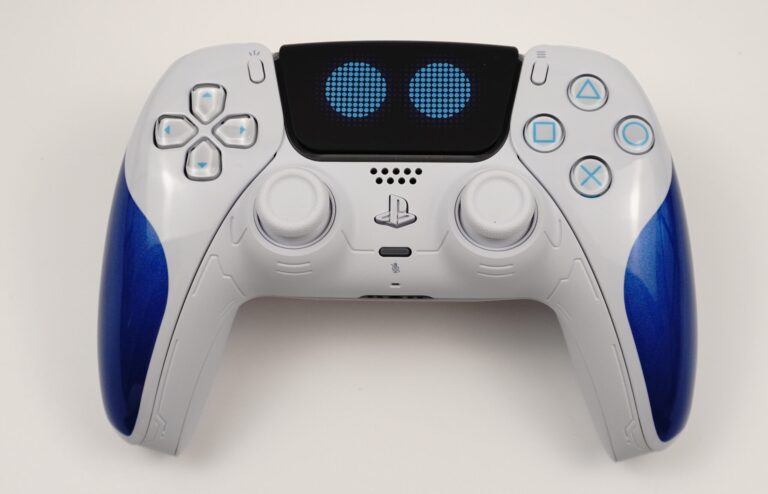
How to Connect PS4 Controller Without USB: You can connect your PS4 controller wirelessly by charging it first and turning on Bluetooth, then put the DS4 into pairing mode by holding the Share and PS buttons until the light flashes.
On Windows, open Bluetooth settings and add a device, while on Mac you’ll use Bluetooth Preferences and choose the controller, sometimes needing the PIN 0000.
You can also use DS4Windows for better Xbox-style compatibility. If it still misbehaves, there’s a simple tweak that might change everything.
Prepare for Wireless Pairing: What You’ll Need

First, grab a charged DualShock 4 controller and a Bluetooth-enabled device you want to pair it with. You’ll want a clear space and a simple plan, so you stay calm and focused. In Bluetooth basics, you’ll learn how signals travel and how to avoid interference from other gadgets, like phones or speakers. Before you start, check that power-saving features are enabled on your device, but not so strict that pairing stops. Make sure the device is charged, or you’ll lose the moment you need it most.
Keep notes of the steps you take, and practice short pauses between attempts for better success. With patience, this hobby stays fun and totally doable. If something feels off, take a break, recheck connections, and try again together. For optimal responsiveness during wireless gameplay, consider using controllers with 1000Hz polling rate to minimize input lag. Wired controllers typically offer lower input lag than wireless options, making them ideal for precision play in fast-paced environments like competitive FPS games.
Put the DS4 Into Pairing Mode
Now that you’ve checked Bluetooth basics and charged up, you’re ready to put the DS4 into pairing mode. First, turn off any lights you don’t need and unplug USB cables from the controller. Then press and hold the Share button while you press the PS button, and keep holding. The light bar will flash or change color, signaling that the DS4 is in pairing mode. For faster setup, remember the button combination and stay patient as devices scan. If the light bar stays solid, try again with a quick release and retry.
Once it flashes, your DS4 is discoverable and ready to pair with your device. Select Wireless Controller from the list, or look for DualShock 4, and connect. Then you’re ready to play. Keep in mind that wireless connections may introduce slight input lag, especially during fast-paced gameplay, which is why many competitive players prefer a wired setup for more reliable performance using tournament-grade fightpads. Upgrading to performance-enhancing accessories like KontrolFreek Warzone Thumbsticks can further improve aiming precision and comfort during extended sessions.
Windows: Connect the DS4 Without USB

On Windows, you can connect your DS4 without USB by pairing it over Bluetooth, no cables needed. First, make sure Bluetooth is on your PC and that you’ve got the latest drivers installed. Open Settings, then Devices, and Bluetooth & other devices, and click Add Bluetooth or other device.
Put your controller in pairing mode by holding the Share and PS buttons until the light bar flashes. Choose Wireless Controller from the list, and if prompted, enter 0000 or follow on-screen prompts. Once connected, you can use DS4Windows for emulation so it behaves like an Xbox controller for games and apps. Keep a spare battery, stay patient, and enjoy the easy wireless setup. It stays reliable, friendly, and fun for long sessions.
macOS: Connect the DS4 Without USB
If you want to game wirelessly on a Mac, pairing your DS4 is easy. Open Bluetooth Preferences in macOS and turn on Bluetooth so your Mac can see devices. Put the DS4 into pairing mode by holding the SHARE and PS buttons until the light bar flashes, then look for Wireless Controller in the list. Click Connect and wait a moment as your Mac completes the setup.
If you don’t see it, try restarting Bluetooth or repeating the pairing sequence. Once connected, you can start playing right away with no USB cable needed, and you can test the touchpad and buttons. Enjoy smooth, wireless gaming with your DS4. Keep it handy near your Mac setup for quick, frustration-free play.
Troubleshooting Wireless PS4 Controller Pairing
Wireless pairing can be finicky, but most issues are fixable with a few quick steps.
- Ensure Bluetooth is on and the controller is in pairing mode, then check the list of nearby devices. If you see a DualShock 4 or Wireless Controller, select it to pair.
- Interference can come from phones, routers, or other gadgets. Move closer to your console or PC and reduce the number of active devices in the room.
- If connection drops persist, restart the PS4 or PC, toggle Bluetooth off and back on, then try again.
- Keep a USB charger handy to rule out a dead battery, and reset the controller by holding the SHARE and PS buttons for about 5–7 seconds.
- If nothing helps, consult the manual or look for online guides for your specific setup.
Frequently Asked Questions
Can DS4 Connect to iOS Devices via Bluetooth?
Yes, you can connect your DS4 to iOS devices via Bluetooth. For gaming, Apple supports the DualShock 4, though some features may be limited. Compatibility is decent on iPad; just check your iOS version and the app’s support.
Does DS4 Require DS4windows on Windows 11?
You don’t have to use DS4Windows on Windows 11, but it helps with DirectInput and XInput emulation for broader game compatibility; otherwise built-in Bluetooth support can work with the DS4, depending on the title today.
Will Mic or Audio Work Over Bluetooth With PS4 Controller?
Yes, you can use a mic and audio through Bluetooth with the PS4 controller, but latency and quality vary. Expect limited mic quality and lag, especially on PC, and consider wired or dongle solutions for audio.
Is There a Minimum Battery Level Required for Pairing?
There isn’t a published minimum, but you should avoid low power states, as a low battery can cause pairing failures. Keep the controller charged, then retry, ensuring Bluetooth isn’t overwhelmed by other devices during the attempt.
Can You Pair Multiple DS4 Controllers Simultaneously via Bluetooth?
Yes, you can pair multiple DS4 controllers, but you must respect the system’s device limits and expect some input lag as more devices are connected. For reliable play, stay within the supported limit (typically up to four controllers on most systems) and ensure each controller stays within Bluetooth range with a stable connection.
Conclusion
You can connect your PS4 controller wirelessly without a USB, as long as it’s charged and Bluetooth is on. Put the controller in pairing mode by holding Share and PS until the light starts flashing. On Windows or Mac, scan for a device named DS4, select it, and you’re connected. If the connection feels flaky, try rebooting devices, removing old Bluetooth pairings, or using DS4Windows on PC. With a few steps, you’ll be gaming smoothly and feeling confident.