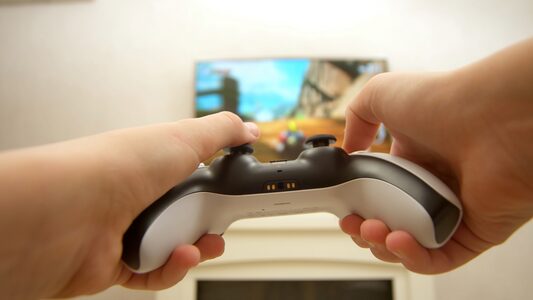
This is how you can Use Game Controller as Mouse.
You can turn a game controller into a handy mouse, no fancy hardware needed, and you get smoother, slower cursor movement for precise clicks.
On Windows or Mac, try Steam Input or AntiMicroX, and on Linux you can use JoyToKey or similar tools, plus wire it for lower lag.
Set a sensitivity, small deadzones, and fast taps for clicking, then save profiles for games, work, and browsing, and see what setup fits your style.
How to Turn a Game Controller Into a Mouse: Quick-Start Guide
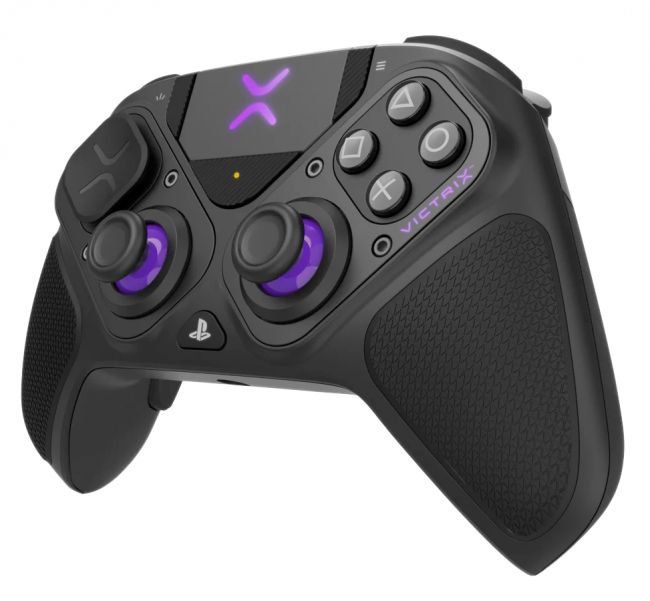
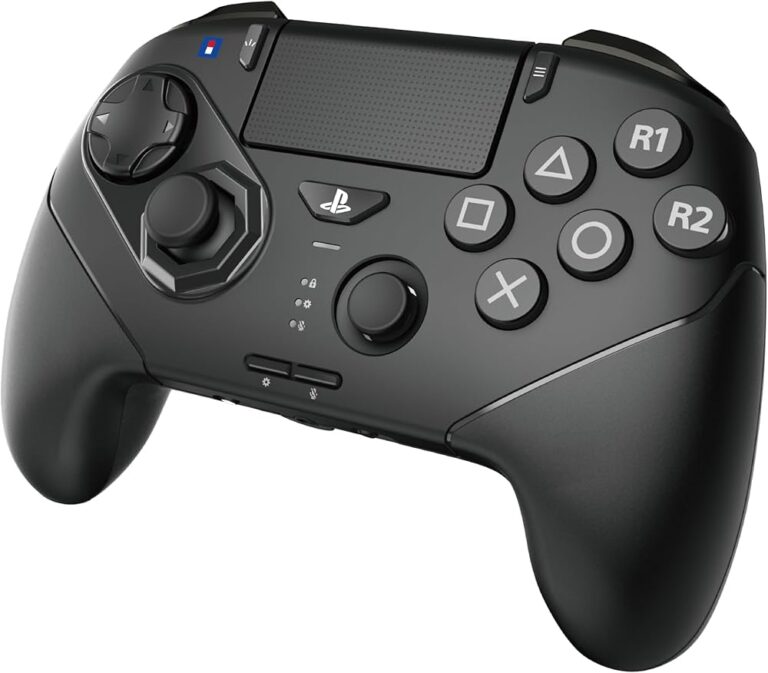
To turn a game controller into a mouse quickly, start simple and have fun. First, choose a program like Steam Input for easy setup and reliable movement. Enable Joystick Mouse, adjust sensitivity, and test the cursor near icons. Map left-click to a button you prefer and assign right-click to another. Practice small motions to improve precision, then widen your sweeps for faster control. For more accuracy, tweak deadzones and acceleration in small steps. Consider accessibility benefits, such as easier navigation for new players. Save a profile for your favorite games and switch as needed. With a bit of practice, you’ll be comfortable moving, clicking, and scrolling. Ask friends for tips, and celebrate small wins together. Controllers with Hall-effect joysticks offer smoother cursor control due to reduced drift and enhanced precision. A wired connection ensures minimal input lag, making wired controllers ideal for precise mouse emulation.
Platform Setup: Windows, macOS, Linux
You can set up a game controller as a mouse on Windows, macOS, and Linux. First, pick a method you like, such as Steam Input, AntiMicroX, or JoyToKey, and install the needed software. Check driver compatibility before you install anything, because some controllers need extra files to work smoothly. For Windows, enable Bluetooth or use a USB dongle for a stable Bluetooth connection if you prefer wireless. On macOS, you might need a helper app and adjust accessibility settings so the cursor moves smoothly. On Linux, you can choose QJoyPad or Custom Python scripts, and make sure your X server or Wayland session is supported. Test sensitivity gradually, then map clicks to familiar buttons and enjoy the setup. Share tips with friends, have fun. Controllers with wired connection typically offer lower input lag, enhancing precision when used as a mouse. High-performance controllers often feature Hall Effect joysticks to eliminate drift and ensure consistent cursor control.
Fine-Tune Precision and Switch Profiles: Troubleshooting Tips
Fine-tuning your setup can feel like a small adventure, and it pays off with silky cursor control. Start by tweaking Sensitivity in small steps, then test by moving across icons. If the cursor overshoots, lower sensitivity or adjust Acceleration to slow the glide. Create a fast profile for quick tasks and a calm profile for precision chores. Switch profiles between apps to save time, using simple shortcuts you map yourself. When a window feels stiff, adjust the deadzone and smoothing to feel more natural. Keep notes on what changes helped, and revert if needed. Practice makes progress, so stay curious and patient, and your control will shine. Share tips with friends, and celebrate small wins as you improve together each week.
Frequently Asked Questions
Can Non-Standard Controllers Be Used as a Mouse?
Yes, non-standard controllers can be used as a mouse if there is adapter compatibility and driver support, and you install software such as Steam Input, AntiMicroX, or JoyToKey to map movement and clicks.
Do These Tools Work Offline Without Internet Access?
Yes, they can work offline after you complete a local setup, though internet access may be required for initial downloads or license validation. Be mindful of software licensing; some tools perform update or activation checks.
How Can I Extend Battery Life While Using the Controller?
You can extend battery life by using power-saving features, adjusting how you use the controller, and turning off energy-heavy options such as vibration, lighting, and wireless wake. Also reduce polling rate, dim LEDs, and choose power-saving profiles.
Is There Input Latency Impact in Fast-Paced Games?
Yes, input latency can occur in fast-paced games. Aim assist may cause slight drift or lag, while smoothing reduces jitter but can add perceived delay during tight reaction moments.
Can I Customize Scroll Wheel or Gestures Beyond Defaults?
Yes, you can customize the scroll wheel and gestures beyond the defaults. In Steam Input or AntiMicroX, use button mapping and axis bindings to tailor sensitivity, detents, and swipes to your playstyle. It’s all about control.
Conclusion
You’ve learned how a game controller can become a smooth, handy mouse, and that feels pretty fun. Pick a setup that fits your PC, then tweak sensitivity, dead zones, and acceleration so movement feels natural. Try a wired connection for speed, or a Hall-effect controller for less drift. Create profiles for gaming and browsing, switch with a button, and you’ll adapt fast. Stay patient, test different settings, and enjoy the easy, precise control every day.