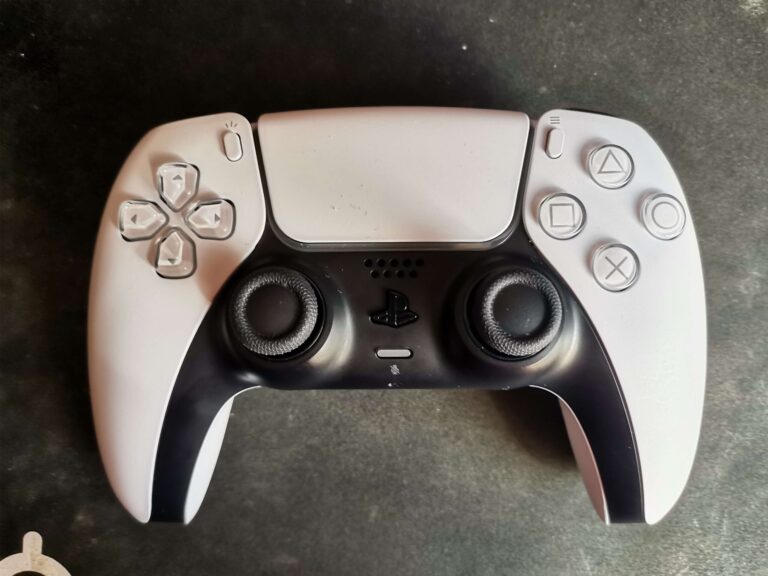
How to Use Dualsense Edge on PC: You can use the DualSense Edge on PC with wired, Bluetooth, or emulation, so you pick what fits your setup and playstyle.
Install the PS Accessories app first, then explore DS4Windows or Steam to map buttons, create profiles, and tweak stick sensitivity.
Regular updates matter for best performance, and a quick reset can fix hiccups. Ready to try a solid setup that keeps you in the game, with options you can tweak? Let’s start.
Choose Your Connection: Wired, Bluetooth, or Emulation for DualSense Edge

Choosing how you connect your DualSense Edge is the first fun step, and you have options. You can go wired with a USB-C cable for steady play, or pick Bluetooth for clutter-free setups, or use emulation to tailor inputs in PC games. Wired gives strong connection stability and minimal lag, which helps when you sprint or aim precisely. Bluetooth is easy and portable, but you might notice a bit more delay if your signal strength is weak. Emulation lets you customize button maps and keep playing even if a game locks standard controls. Whichever path you choose, keep cables handy, update firmware, and test a quick match to feel how your setup shines. Ask friends for tips, and enjoy the smooth, confident feel today. A wired connection also eliminates potential battery and Bluetooth related failures that can interrupt gameplay. For fighting game players, using a controller with a microswitch-based D-pad can significantly improve input responsiveness and accuracy due to its faster response and feel.
Install DualSense Edge Drivers and Essential PC Software (PS Accessories, DS4Windows, Steam)
First, grab the PS Accessories app from Sony’s site and install it on your PC. This will surface driver updates so you don’t miss important fixes. Software installation is simple: run the installer, follow the prompts, and reboot if asked.
After that, open DS4Windows to tailor how the DualSense Edge works on your PC, and try Steam’s controller configurator for extra options. Keep your drivers current by checking for updates in PlayStation Accessories, DS4Windows, and Steam periodically. You may need to restart programs after updates so settings save.
A quick tip: save profiles for different games so you can switch them quickly. This setup is friendly, quick, and lets you game right away. Stay curious, and enjoy smooth play with friends today. For enhanced precision and reduced drift during gameplay, consider using controllers with Hall-effect joysticks. Controllers with wired connections often provide more consistent performance due to lower input lag, a key factor for competitive wired controllers.
Customize DualSense Edge Controls and Profiles (Maps, One-Button Profile Swaps)

When you customize your DualSense Edge, map buttons for faster actions and smoother gameplay. Start by choosing a primary layout, then test it in a quick match to feel the flow. This is where button mapping shines, letting you swap functions on the fly. Create profiles for different games, like racing and shooters, so you can switch quickly. Use profile creation to store a preferred grip, sensitivity, and trigger travel in one tap. For maps, assign the D-pad, triggers, and bumpers to the common actions you use most. When your setup feels right, save it as a profile and name it clearly. A one-button swap changes between controls instantly, great for switching lanes or aiming. Keep experimenting, share tips, and enjoy easy tweaks.
Troubleshooting DualSense Edge on PC and Best Practices Before Gaming
If you run into issues, start by checking your firmware and using the PlayStation Accessories app to update. This helps keep connection stability strong and fixes small glitches quickly.
Ensure you have a solid USB or Bluetooth setup, and avoid crowded wireless channels. Update frequency matters too, so check for updates monthly or after major Windows changes.
When pairing, disconnect USB first, then enter pairing mode by holding the Create and PS buttons, and select the device.
If it still won’t connect, reset the controller and retry, or try DS4Windows for compatibility.
Maintain a steady update cadence and track your connection stability during longer sessions, so you know when to recheck firmware. Good habits make gaming smoother and more enjoyable. You’ve got this, gamer friend.
Frequently Asked Questions
Can Dualsense Edge Work on macOS or Linux Systems?
Yes, it can work on macOS and Linux with caveats: driver support varies, software compatibility isn’t guaranteed, and you may rely on generic Bluetooth or USB plus third-party tools for features like haptics and passthrough.
What Is the Wireless Battery Life Under Typical Use?
Typically you can expect about 10–12 hours of wireless battery life under normal use. Charging speed matters: faster charging is helpful if your usage includes sessions or frequent breaks, and heavy haptics can shorten battery life overall.
How to Safely Clean and Replace the Stick Modules?
To safely clean and replace stick modules: power off the device and disconnect from USB. Gently wipe the sticks with isopropyl alcohol on a lint-free cloth. Inspect for debris or residue and remove carefully. If stick drift persists, replace the module following the device’s replacement procedure. After replacement, recalibrate the sticks, test for drift, and secure all screws/attachments.
Is There Latency When Using Bluetooth With Non-Ps Games?
Yes, you’ll likely see input lag with Bluetooth on non-PS games, and the connection can be unstable. To improve it, use wired, or DS4Windows/DSX, and optimize drivers for better connection stability and reduced input lag.
Does Edge Support Cloud Gaming Platforms (E.G., Xbox Cloud Gaming)?
Yes, you can use Microsoft Edge for cloud gaming such as Xbox Cloud Gaming. Support varies by service, but streaming generally works in Edge. Make sure you’re connected with supported USB or Bluetooth controls and configure the controls as needed.
Conclusion
Trying the DualSense Edge on PC is easy and fun, and you can start today. Connect wired for the best latency, or use Bluetooth for wireless freedom, and try emulation for quick setup. Install PS Accessories, then explore DS4Windows or Steam for custom layouts and profiles. Save battery by closing unnecessary apps and test button swaps in a game first. Keep firmware updated, and you’ll game smoothly with confidence.