
There’s nothing worse than trying to line up a shot in a shooter game and your character keeps staring at the ceiling for no reason. If your DualSense is acting possessed, you’re dealing with stick drift – and honestly, it’s a widespread problem that affects more PS5 controllers than Sony probably wants to admit.
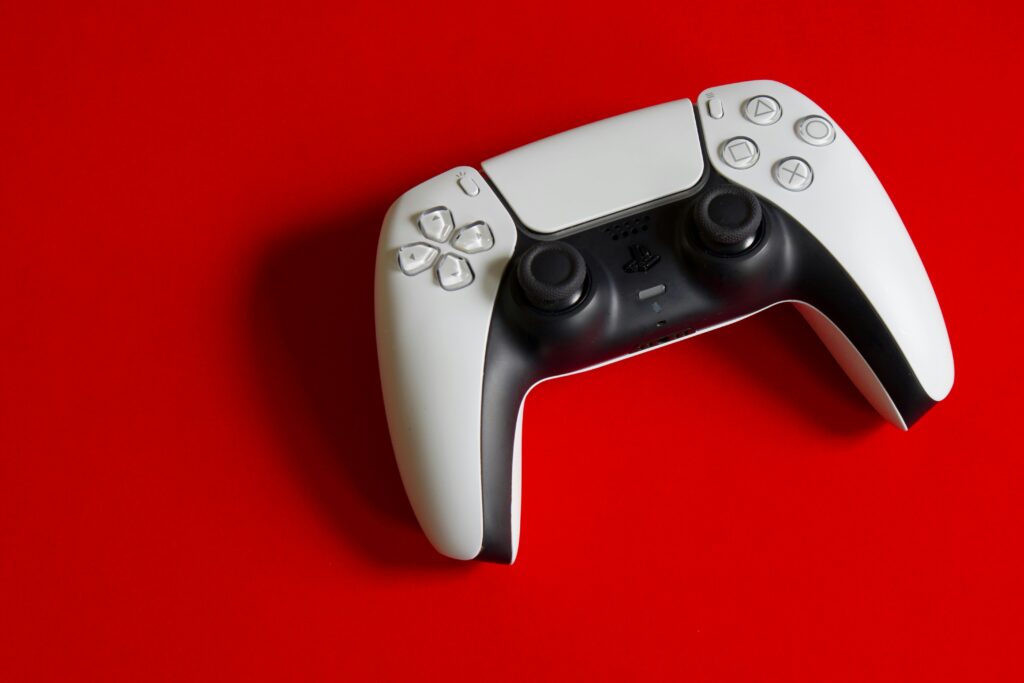
Stick drift happens when your analog sticks register movement even when you’re not touching them. Your character might walk forward, the camera might spin sideways, or your aim drifts off-target constantly. Before you drop $70 on a replacement controller, there are several fixes worth trying that don’t involve opening anything up.
What Actually Causes PS5 Stick Drift
The root of the problem comes down to three main culprits. Dust and debris get lodged around the analog stick mechanism over time – every gaming session drops dead skin cells, food particles, and household dust into those tiny gaps around your joysticks. It sounds gross, but that’s what happens.
Wear and tear is the bigger issue, though. Research from iFixit found that DualSense controllers use the same off-the-shelf joystick parts as Xbox, PlayStation 4, and even Nintendo Switch controllers. The potentiometers inside those sticks are rated for about 2 million cycles, which translates to roughly 417 hours of gameplay in something like Call of Duty. If you game for two hours daily, you’re technically exceeding the manufacturer’s expected lifespan in about seven months.
Physical damage matters too. Dropping your controller can knock the internal sensors out of alignment, even if there’s no visible external damage. The impact bends metal contacts or shifts components just enough to cause phantom inputs.
Quick Fixes You Can Try Right Now
The Rotation Method
This technique works surprisingly well for mild drift cases. Take the analog stick that’s drifting and rotate it in full circles – counterclockwise first, making at least three complete rotations while pushing the stick all the way to its outer edges. Then repeat the same thing going clockwise.
The goal here is to physically dislodge dust or debris stuck inside the mechanism. After doing several rotations both directions, press the stick all the way down and hold it there for a few seconds. Now repeat the full rotation routine while keeping the stick pressed down the entire time. It sounds simple because it is, but this works often enough that it’s worth trying before anything else.
Compressed Air Cleaning
Grab a can of compressed air and spray short bursts around the base of each joystick. Don’t go crazy with it – you want gentle, targeted bursts while moving the stick in circles to help loosen accumulated gunk. You can also use a cotton swab very lightly dampened with isopropyl alcohol to clean around the stick’s base, but make absolutely sure the controller is completely dry before reconnecting it.
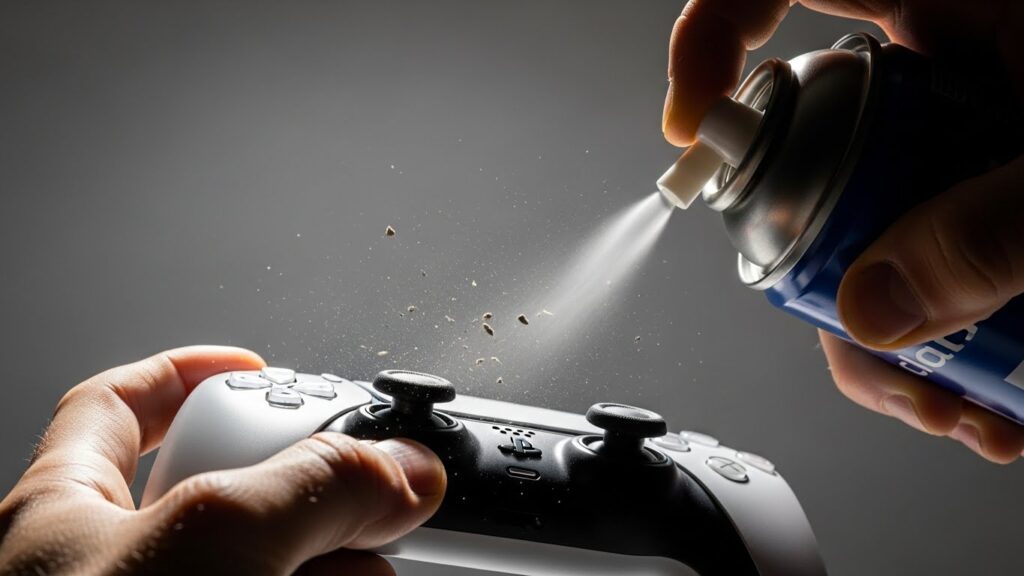
Some people blow air directly into the gap using a straw. If you try this, bend the straw end and push the analog stick in the opposite direction to create more space. The compressed air method gets debris out without requiring you to open the controller.
Controller Reset
Sometimes the drift stems from a software glitch rather than physical damage. Resetting your DualSense forces it to disconnect and re-establish the connection with your PS5, which can eliminate calibration issues.
Look for a tiny hole on the back of your controller near the Sony logo. Use a straightened paperclip, toothpick, or pin to press and hold the reset button inside that hole for about 5-10 seconds. After the controller fully disconnects, turn your PS5 back on and reconnect the DualSense using the USB cable, then press the PS button to re-sync.
Software Solutions Worth Checking
Before assuming it’s a hardware problem, make sure your PS5 system software is current. Head to Settings > System > System Software > System Software Update and install any pending updates. Sony occasionally releases firmware updates that address controller performance issues.
The PS5 doesn’t have a built-in calibration tool like some platforms, but you can test your controller’s behavior through Settings > Accessories > Controllers > Test Input Devices. This screen shows exactly what inputs your controller is registering, so you can observe the drift in real-time and check whether your fixes are actually working.
Some games have dead zone settings that let you adjust how much stick movement gets ignored before the game registers input. Increasing the dead zone won’t fix the underlying problem, but it can make a drifting controller temporarily playable while you work on a real solution.
When to Consider Hardware Repairs
If cleaning and resets don’t solve the issue, you’re looking at actual component failure. The internal potentiometers or analog stick modules themselves have worn out past the point where simple maintenance helps.
For controllers still under warranty, Sony offers free repairs or replacements. The standard manufacturer warranty covers DualSense controllers for one year. You’ll need to pay shipping to send your controller to Sony, and some users report that replacement controllers also developed drift within a few months. Still, if you’re within that one-year window, the warranty claim is worth pursuing.
Advanced users with soldering experience can install anti-drift kits like the eXtremeRate Drifix system, which requires disassembling the controller and desoldering motor wires. This isn’t a casual fix – it demands precision and comfort working with small electronics. For most people, replacement makes more sense than attempting this level of repair.
How to Prevent Stick Drift in the First Place
You can’t completely eliminate drift risk since the potentiometers have a finite lifespan, but you can extend your controller’s usable life. Keep your hands clean while gaming – oils, sweat, and dirt from your fingers accelerate component wear. Store your controller in a case or drawer when not in use to minimize dust exposure.
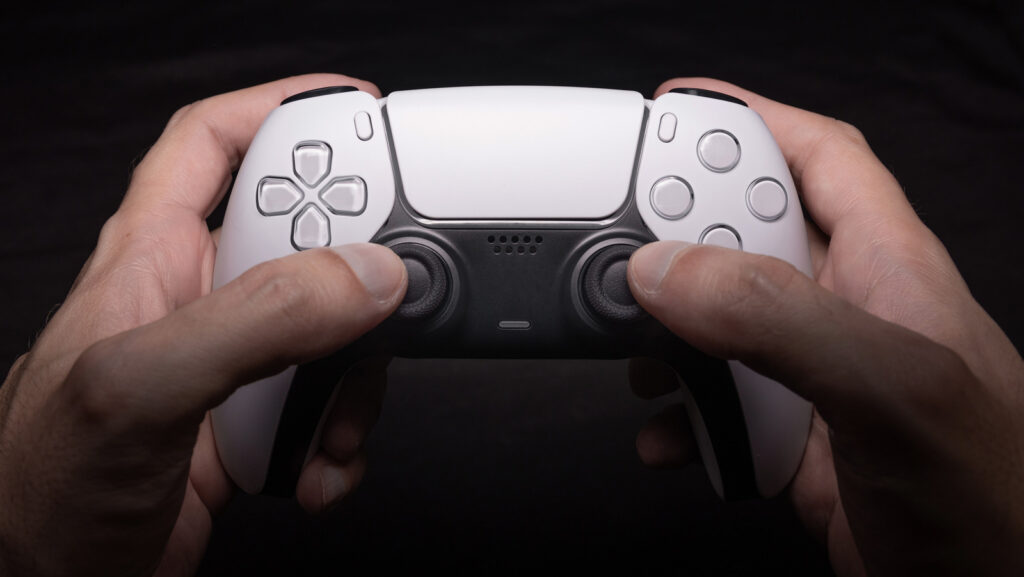
Avoid slamming the analog sticks to their edges repeatedly and aggressively. Games that demand constant sprint input (like shooters where you’re always pushing L3) wear out the left stick faster than casual gaming does. If you notice early signs of drift, address them immediately with cleaning rather than waiting until the problem becomes severe.
Some gamers buy extended warranties from retailers like GameStop, which offer controller replacements for a $10-15 annual fee. If you play intensively or go through controllers quickly, this can be more cost-effective than buying new DualSense units at full price.
FAQ Section
Q: Can you fix stick drift on PS5 without opening the controller?
A: Yes, most cases respond to the rotation method (circling the stick while pressing down), compressed air cleaning around the joystick base, and controller resets using the button on the back. These non-invasive fixes resolve drift caused by debris or minor calibration issues.
Q: What causes PS5 controller stick drift?
A: Stick drift typically results from dust and debris lodged in the analog stick mechanism, worn-out internal potentiometers after extended use (rated for about 417 gameplay hours), or physical damage from drops that misalign components.
Q: How long does a PS5 controller last before getting stick drift?
A: The joystick potentiometers are rated for 2 million cycles, which translates to approximately 417 hours of intensive gameplay in action games. For casual users gaming 2 hours daily, this means potential drift symptoms within 7 months, though actual lifespan varies based on usage intensity.


